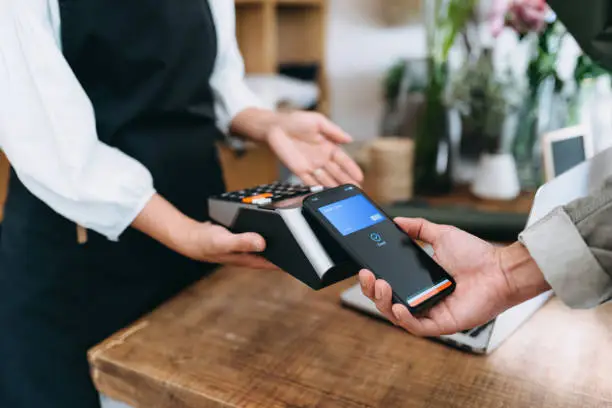

What makes it different from a normal till
A standalone till records sales. That is all it does. At the end of the day someone exports a report and types the totals into the accounting software, and separately adjusts a stock spreadsheet.
Odoo Point of Sale is a screen on top of the same database as everything else.
Ring up a sale and the stock drops. The customer’s history updates. The accounting entry posts. There is nothing to export at the end of the day, because there is nowhere to export it to — it is already in the system.
That is the whole argument for using it.
FIGURE 1: A STANDALONE TILL VS ODOO POS
Standalone till
- Records the sale and nothing else
- Stock updated in a spreadsheet later
- Totals typed into accounting at day end
Odoo POS
- Stock drops as you ring up
- Customer history updates
- Accounting entry posts automatically
Setting up a POS
The session model
POS works in sessions. You open a session at the start of a shift, record sales, and close it at the end.
Closing a session is when the money gets counted and reconciled. Odoo shows what it expected in the drawer against what you actually counted, and any difference is recorded.
Do not skip the closing count. It is the only control the till has, and a session left open for days makes reconciliation meaningless.
FIGURE 2: THE SESSION CYCLE
Open session
- Record the float
Sell
- Sales, refunds, cash in and out
Close session
- Count the drawer
Reconcile
- Expected against counted
Payment methods
Set up each way customers pay — cash, card, mobile payment, gift voucher, store credit.
Each method maps to an accounting journal, so payments land in the right place automatically. Cash methods get counted at session close; card methods usually do not.
Products in POS
Products need to be marked Available in POS to appear on the screen.
Organise them into POS categories that match how your staff actually finds things, not how your catalogue is structured. A cashier under pressure needs three taps, not a menu tree.
Hardware
Odoo POS runs in a browser, so it works on a tablet, a laptop or a touchscreen till.
For receipt printers, cash drawers, barcode scanners and card terminals you usually need an IoT Box — a small device that connects the hardware to Odoo. Some printers and scanners work directly.
Test your hardware properly before go-live. Hardware is the part of a POS project most likely to cause a bad first day.
Working offline
This is the feature that matters most in practice.
Odoo POS keeps working when the internet drops. Sales are stored locally and sync when the connection returns.
For a shop, this is the difference between a minor annoyance and being unable to trade. It is worth testing deliberately — pull the network cable during your test session and confirm you can still complete a sale.
Useful features
Customer accounts. Attach a customer to a sale and their purchase history builds up. Needed for loyalty, and for any kind of account or credit sale.
Loyalty programmes. Points, discounts, promotions and coupons. Configured in Odoo and applied automatically at the till.
Multiple price lists. A staff price, a happy hour price, a member price. The cashier switches price list on the order.
Restaurant features. Floor plans, tables, splitting bills, kitchen printing. Enable these only if you run a restaurant — for a retail shop they add clutter.
Refunds and returns. Handled from the POS screen, and they reverse the stock and accounting properly.
Cash management
Two operations that keep the drawer honest.
Cash in. Adding a float at the start, or putting money in mid-shift.
Cash out. Taking money to the bank, or paying a small expense from the till.
Both are recorded, so the closing count has something to reconcile against. Without them, any cash movement shows up as an unexplained difference.
Multiple shops
If you have more than one location, each gets its own POS configuration.
Set the stock location correctly on each one. A POS selling from the wrong warehouse produces stock figures that are wrong in two places at once, and it is a surprisingly easy mistake to make during setup.
Reports can then compare shops directly — sales, margins, best sellers, hours.
Reports worth using
Session reports. Sales, payment method breakdown and cash differences per session. Your daily control.
Sales by product. What actually sells. The report that should drive your reordering.
Sales by hour. Your busy periods. Useful for staffing.
Cashier performance. Sales per person, and — more usefully — persistent cash differences by cashier.
Margin by product. Depends on your product costs being right. If costs are wrong, this report is confidently wrong.
What usually goes wrong
Sessions left open. Reconciliation only works session by session. A session running for a week tells you nothing.
Wrong stock location. Sales reducing stock in the wrong warehouse. Check this on every POS configuration.
Products not in POS. Staff cannot find an item, so they ring it up as something else. Now your sales data and your stock are both wrong.
Hardware untested. Receipt printers are the most common opening-day problem in retail.
No closing count. Skipping the count removes the only real control the till has.
Getting started
- Create your POS configuration and set the stock location correctly
- Set up payment methods and map them to journals
- Mark products available in POS and organise them into sensible categories
- Set up and test all hardware
- Run a full test session — sales, a refund, cash in, cash out, and a close with a count
- Test offline mode by disconnecting the network mid-session
- Train staff on opening, closing and refunds specifically
Point 6 is the one people skip and later regret. Point 7 matters because the three things staff get wrong under pressure are always opening, closing and refunds.
Setting up POS for your shop?
Get in touch. We test hardware and offline behaviour before go-live, not on your first trading day.
Related reading: Why Businesses Choose Odoo · How Small Businesses Can Use AI with Odoo · Odoo module – Purchase Payment Status